
TEMPLATE DOCUMENTATION
Read this page before making any changes to the template. Also, please register for our template restyle course:
*By the way, this page is pass-protected. You can just keep it in the Not Linked section and consult it when you need to
What's covered in this guide:
How to get started / Watch the course
Access CANVA graphics
Inset width setup for all pages
Read More links styled as buttons
1. How to get started / Watch the course
Firstly, duplicate all the pages you plan to use before making any changes to the design. This way you will save the original design of the layouts for your future reference. Many things can go wrong when you start designing, and some of them are difficult to reverse. Duplicating the pages beforehand will safeguard your customization process. If you mess something up, you can always start fresh. You can duplicate pages as many times as you need.
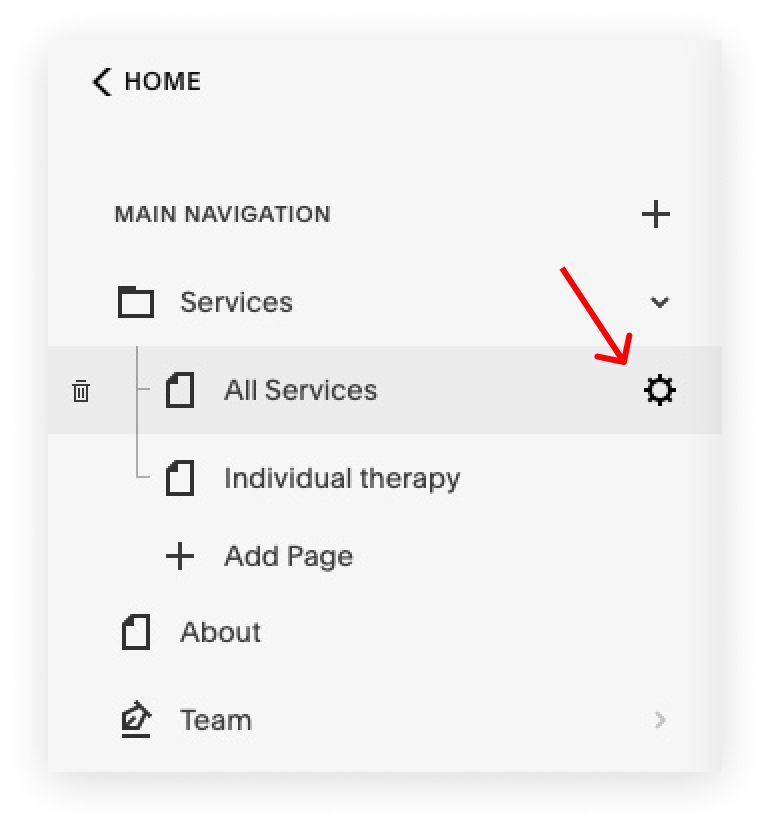
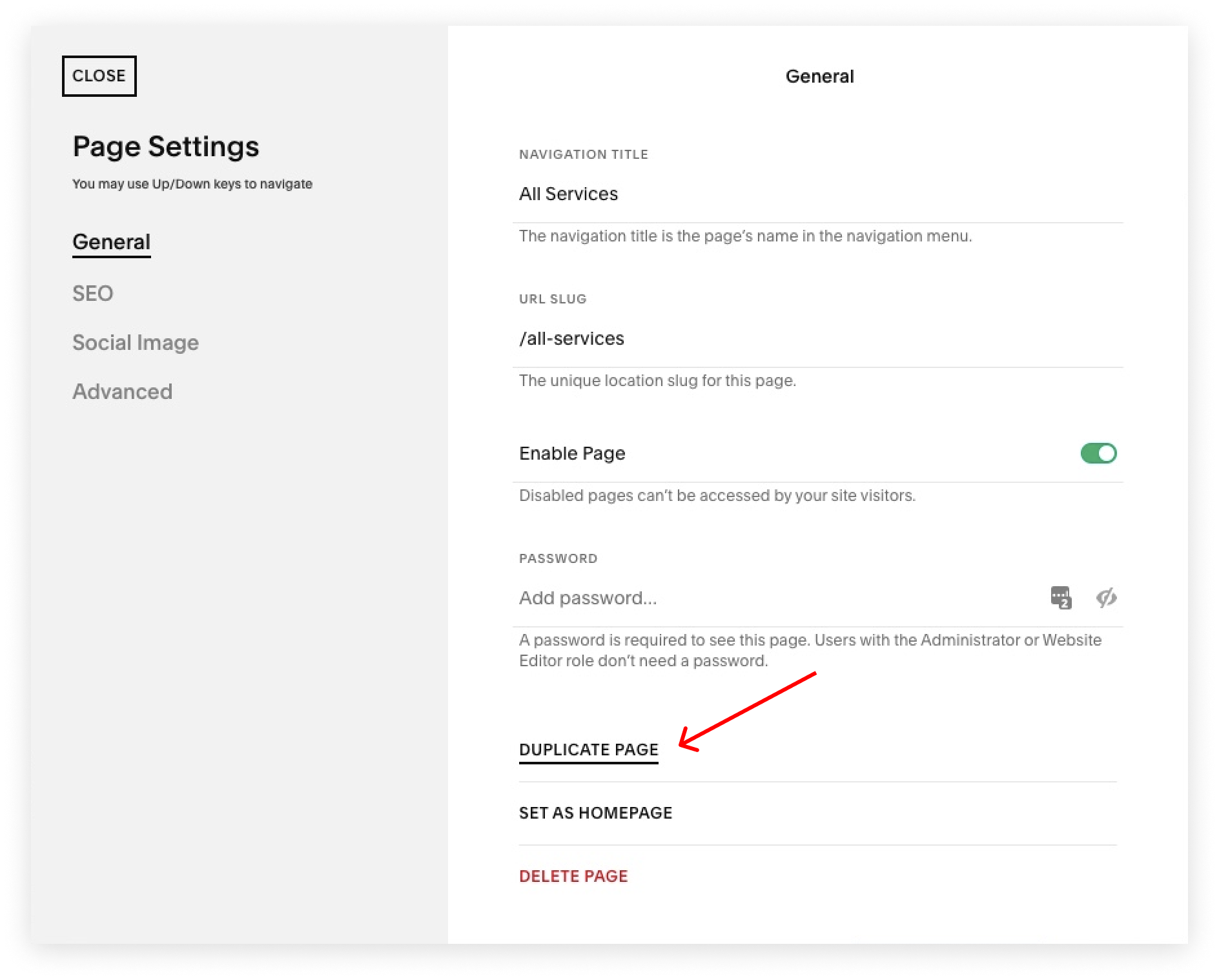
To duplicate a page click a small gear icon next to it. In the general settings scroll down and click Duplicate page. You can put these duplicated pages in the Not-Linked section, so no one sees them except for you. To do this, just click the name of the page and drag it down.
I also advise you to watch the course and prepare your content before tweaking the template. The course walks you through Squarespace website builder and explains how to customize your template using basic design principles. Watching it before jumping into tweaking ensures the best possible outcome.
Save sections to favorites
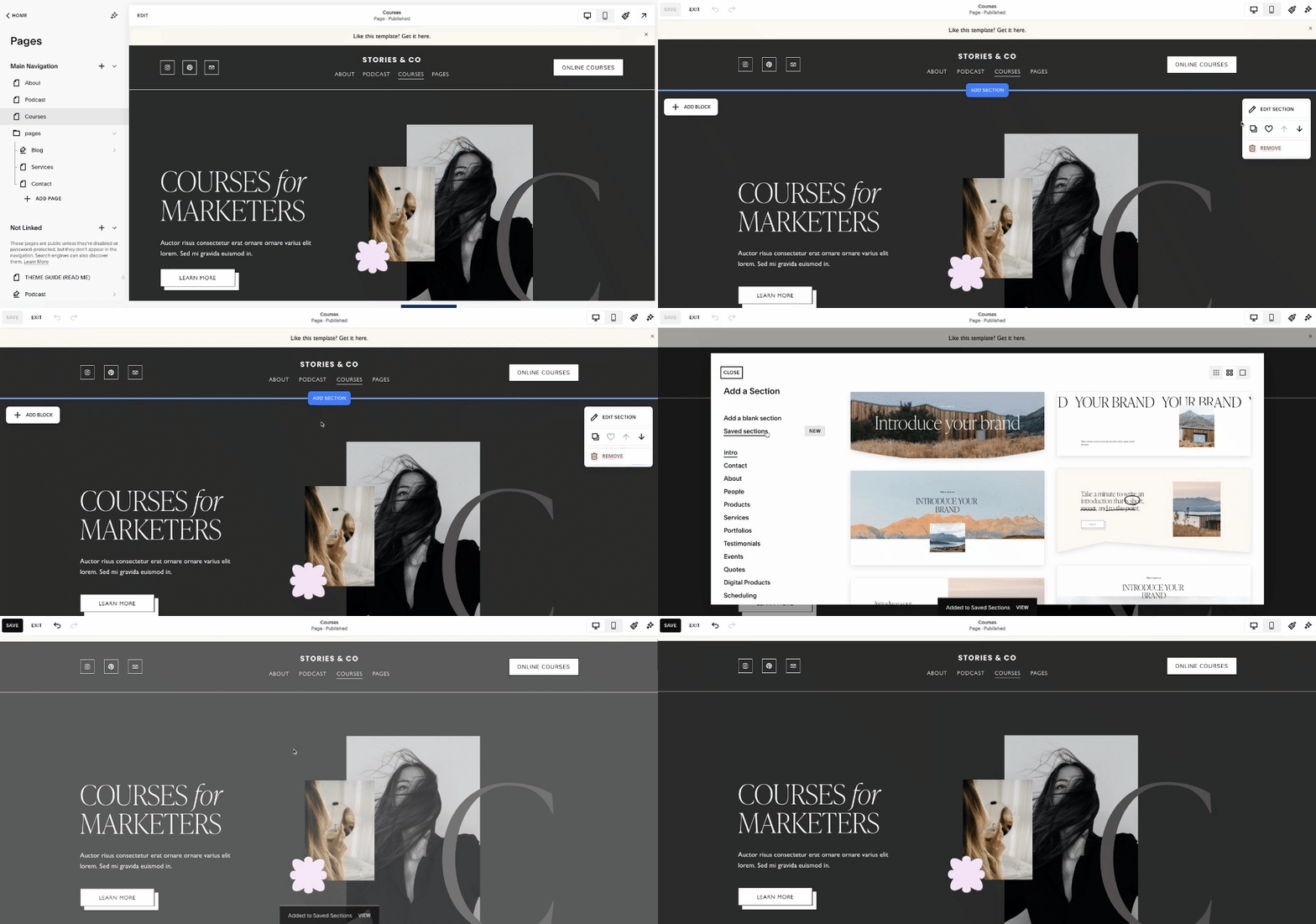
Go into the page editing mode and bring up the Edit Section menu in any section you like. Click the heart icon to save to the section to favorites, and then reuse it on any other page you like. You can access the saved sections when clicking “add section“ when editing the page.
2. Access CANVA graphics
3. Inset width setup for all pages
This snippet ensures that page content sections and gallery sections calculate their width correctly when inset padding or borders are applied.
This prevents layout issues such as:
Elements accidentally overflowing their containers,
Unexpected horizontal scrollbars, or
Misaligned sections when custom padding or borders are added.
// Giving inset width to all pages

.page-section .collection-content-wrapper,
.page-section .gallery-content-wrapper {
  box-sizing: border-box; // safer than unset
}
4. Read More links styled as buttons
This snippet transforms the default “Read More” links in blog or collection sections into full-fledged buttons, matching the site’s primary button design for a more cohesive, professional look.
// Read more links as buttons

.content-collection {
  .collection-content-wrapper {
    .blog-more-link {
      @this-button-border-radius: 300px;

// or 0

      display: inline-block;
      text-decoration: none;
      padding: ~"calc(var(--primary-button-padding-y) * 0.75)" var(--primary-button-padding-x);

      font-family: var(--primary-button-font-font-family);
      font-size: calc(var(--primary-button-font-font-size-value) * 1rem);
      font-style: var(--primary-button-font-font-style);
      font-weight: var(--primary-button-font-font-weight);
      letter-spacing: var(--primary-button-font-letter-spacing);
      text-transform: var(--primary-button-font-text-transform);
      line-height: var(--primary-button-font-line-height);

      color: var(--primaryButtonTextColor);
      background-color: var(--primaryButtonBackgroundColor);

      border: var(--primary-button-stroke) solid var(--primaryButtonTextColor);
      border-radius: @this-button-border-radius;

      outline: none;
      transition: 0.1s opacity linear;
      -webkit-backface-visibility: hidden;
      -webkit-font-smoothing: antialiased;

      &:after {
        display: none;
      }

      &:hover,
      &:active {
        opacity: .8;
      }
    }
  }
The “Read More” links in blog lists or collection pages become stylish, clickable buttons that visually align with your site’s button design — making blog excerpts look cleaner and more intentional.